successfully added to your cart!

WIX
Install ImagenTra on Wix
Add the ImagenTra widget through Wix Custom Code so it loads across your website without editing individual pages.
01
Copy the widget
Copy the complete ImagenTra widget generated for your Wix site's domain.
02
Open Custom Code
Open your Wix dashboard and go to Settings → Custom Code.
03
Add ImagenTra
Add the widget to All Pages and select Body – end for its placement.
04
Apply & test
Apply the custom code and test ImagenTra on your published Wix website.
STEP 1
Open Wix Custom Code
Sign in to your Wix dashboard and open:
Settings
Development & integrations
Custom Code
Click + Add Custom Code at the top right.
Your Wix site must be published and have
a connected domain before dashboard
Custom Code can be used.
WIX CUSTOM CODE
 Open the Custom Code section from your Wix dashboard.
Open the Custom Code section from your Wix dashboard.
STEP 2
Paste the ImagenTra widget
Paste the complete ImagenTra widget into the custom-code field.
<!-- ImagenTra -->

[YOUR IMAGENTRA WIDGET CODE]
Give the code a recognizable name, for example:
ImagenTra Widget
Copy the generated widget exactly as provided. Do not alter its domain, package identifiers or configuration values.
ADD CUSTOM CODE
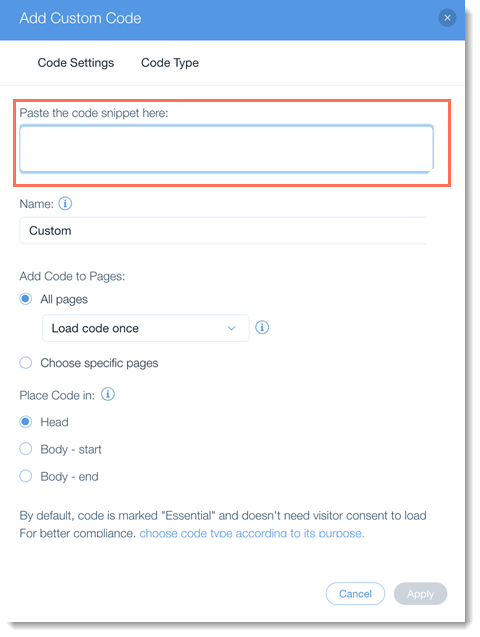 Paste the ImagenTra widget into the custom-code field
and give it an easy-to-recognize name.
Paste the ImagenTra widget into the custom-code field
and give it an easy-to-recognize name.
Paste the ImagenTra widget into the custom-code field
and give it an easy-to-recognize name.
STEP 3
Configure where ImagenTra loads
Under Add Code to Pages, select:
All pages
Wix will then include the code on all current pages and on new pages created later.
Under Place Code in, select:
Body – end
Wix allows custom code to be inserted in the Head, Body – start or Body – end. For the standard ImagenTra widget we recommend Body – end.
RECOMMENDED SETTINGS
All Pages + Body End
These settings make ImagenTra available throughout the storefront without editing Wix pages one by one.
Functional third-party code belongs in the
body according to Wix's current guidance.
LOAD FREQUENCY
Wix offers two loading options
When Custom Code is applied to All Pages, Wix lets you choose whether it loads once per site visit or on each page the visitor opens.
Please, choose the option that causes ImagenTra to initialize correctly on every page where it is needed.
STEP 4
Apply and test ImagenTra
Click Apply to save the Wix Custom Code configuration.
Open your published Wix website in a new browser window and make sure ImagenTra loads correctly.
Homepage
Store / category
Product page
MANAGE CUSTOM CODE
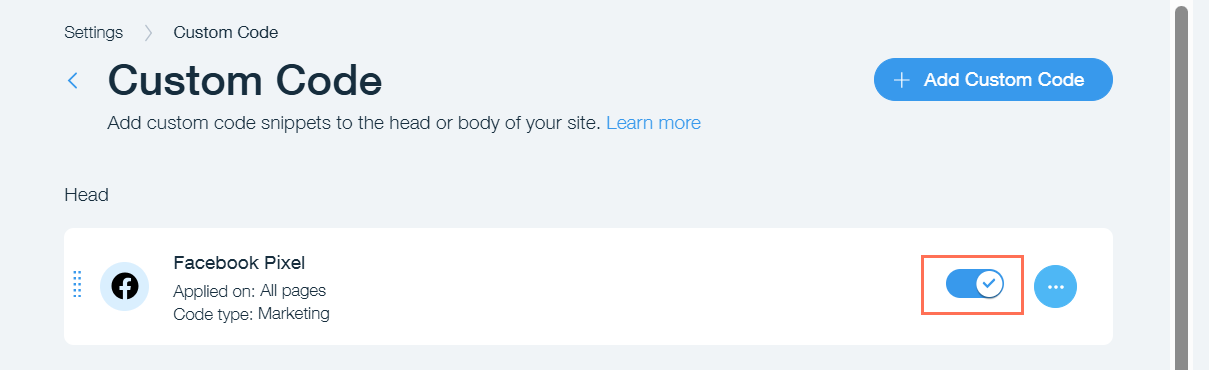 Wix Custom Code entries can be enabled or disabled
from the dashboard when testing an integration.
Wix Custom Code entries can be enabled or disabled
from the dashboard when testing an integration.
Wix Custom Code entries can be enabled or disabled
from the dashboard when testing an integration.
WIX FRONTEND SECURITY
Some third-party code may require compatibility updates
Wix introduced additional frontend security measures for custom code in December 2025. Wix notes that some third-party snippets may be blocked until their provider adapts them to the newer security model.
If the ImagenTra code is installed correctly but does not execute on Wix, contact ImagenTra support so the widget compatibility can be checked.
DOMAIN VERIFICATION
Verify your Wix domain
Domain verification is not required to install or use ImagenTra. It is only needed when you want access to protected statistics and analytics.
Wix does not provide normal access to the website's document root. Wix explicitly states in its own domain-verification guidance that uploading an HTML verification file is not possible, so ImagenTra's .well-known file method is not appropriate for a normal Wix site.
Instead, use ImagenTra's temporary verification widget.
01
Copy the verification widget
Get the temporary verification widget generated for your Wix domain.
02
Edit your ImagenTra Custom Code
Return to Wix Settings → Custom Code and open the ImagenTra Widget entry.
03
Temporarily replace the widget
Replace the standard ImagenTra code with the verification widget and click Apply.
04
Verify your domain
Load the verification widget from the same device where you requested the verification.
05
Restore the standard widget
After verification succeeds, replace the verification widget with your normal ImagenTra widget again.
AFTER VERIFICATION
Your Wix domain remains verified
The temporary widget is needed only while ImagenTra confirms that you control the domain.
Once verification succeeds, restore your normal widget and continue using ImagenTra as usual.
The verified domain can now access its
protected statistics and analytics.
READY
Your Wix website is ready for ImagenTra
Once the Custom Code is active on the domain associated with your package, you can start using your available generations. Verify the domain separately when you want access to statistics and analytics.