successfully added to your cart!

SQUARESPACE
Install ImagenTra on Squarespace
Add the ImagenTra widget through Squarespace Code Injection so it loads automatically across your website without editing individual pages.
01
Copy the widget
Copy the complete ImagenTra widget generated for your Squarespace domain.
02
Open Code Injection
Open the Squarespace Code Injection panel for your website.
03
Add ImagenTra
Paste the complete widget into the site-wide Footer field.
04
Save & test
Save the changes and test ImagenTra on your live website.
STEP 1
Open Code Injection
Sign in to your Squarespace website and open the site-wide Code Injection panel.
Pages
Custom Code
Code Injection
On some Squarespace interfaces or older site versions, Code Injection may instead appear under Website Tools or site settings.
Code Injection availability depends on your
Squarespace billing plan.
CODE INJECTION
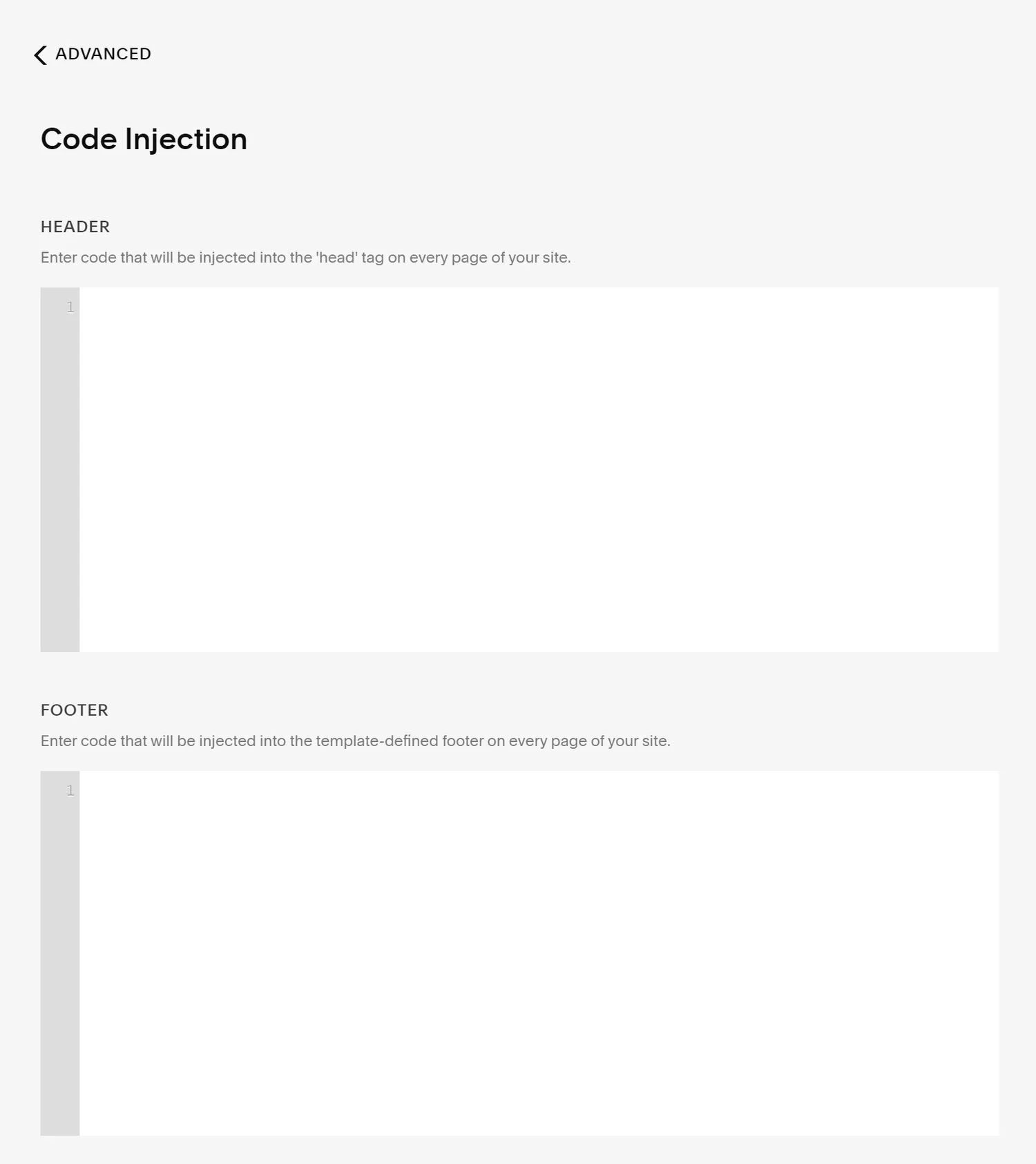 The Squarespace Code Injection panel contains
separate Header and Footer fields.
The Squarespace Code Injection panel contains
separate Header and Footer fields.
The Squarespace Code Injection panel contains
separate Header and Footer fields.
STEP 2
Find the Footer field
The Code Injection panel contains separate Header and Footer areas.
For ImagenTra, use:
Footer
Squarespace inserts code from this field immediately before the closing </body> tag across the site.
WHY FOOTER?
Site-wide placement without theme editing
You do not need to locate a Squarespace template file or manually add ImagenTra to individual pages.
The Footer Code Injection field handles the global placement automatically.
This is the same type of mechanism Squarespace
documents for other third-party scripts and widgets.
STEP 3
Paste the ImagenTra widget
Paste the complete ImagenTra widget into the Footer Code Injection field.
<!-- ImagenTra -->

[YOUR IMAGENTRA WIDGET CODE]
Copy the widget exactly as provided by ImagenTra. Do not modify the domain, package identifiers or configuration values contained in the generated code.
If the generated ImagenTra code contains JavaScript, keep its existing <script> tags. Squarespace requires JavaScript placed in Code Injection to be enclosed in script tags.
SIMPLE INSTALLATION
One code entry is enough
Because the Footer Code Injection field is site-wide, you normally only need to add the ImagenTra widget once.
You do not need a separate Code Block on every product or content page.
STEP 4
Save and test ImagenTra
Click Save after adding the widget.
Open your public Squarespace website in a new browser window and check that ImagenTra loads correctly.
Homepage
Store page
Product page
TEST THE LIVE SITE
Use the public website when testing
Squarespace notes that injected scripts can sometimes interfere with the editing preview.
If necessary, test ImagenTra in a private/incognito browser window on the public domain instead of relying only on the Squarespace editor preview.
CHECKOUT PAGES
Squarespace doesn't load Code Injection on checkout
Squarespace states that checkout pages don't support normal Code Injection.
This normally isn't a problem for ImagenTra because customers use the widget while browsing products and site content rather than while completing payment.
DOMAIN VERIFICATION
Verify your Squarespace domain
Domain verification is not required to install or use ImagenTra. Verification is only required if you want access to protected statistics and analytics for the domain.
For a normal Squarespace-hosted website, the recommended ImagenTra method is the temporary verification widget.
01
Copy the verification widget
Get the temporary verification widget generated by ImagenTra for your domain.
02
Open Code Injection
Return to the Squarespace Code Injection panel and locate the Footer field.
03
Temporarily replace ImagenTra
Replace your standard ImagenTra widget with the temporary verification widget and click Save.
04
Verify your domain
Load the verification widget from the same device where you requested the verification.
05
Restore the normal widget
After verification succeeds, replace the temporary verification widget with your standard ImagenTra widget again.
WHY THE WIDGET METHOD?
Squarespace doesn't expose a normal web root
Squarespace-hosted websites don't provide the same root-level file access as a self-hosted website.
Squarespace itself notes that there is no built-in method for uploading certain root-level files such as ads.txt, which makes ImagenTra's .well-known file method unsuitable as the standard Squarespace verification workflow.
After verification succeeds, restore your normal
widget and access the domain's statistics normally.
SQUARESPACE PLAN
Code Injection requires an eligible Squarespace plan
Squarespace currently provides site-wide Code Injection on Core, Plus, Advanced, and certain legacy billing plans.
If your current plan doesn't provide Code Injection, you'll need to upgrade to a plan that supports site-wide custom JavaScript before installing ImagenTra this way.
READY
Your Squarespace website is ready for ImagenTra
Once the Footer Code Injection is active on the domain associated with your package, you can start using your available generations. Verify the domain separately when you want access to protected statistics and analytics.