successfully added to your cart!

WEBFLOW
Install ImagenTra on Webflow
Add the ImagenTra widget through Webflow's site-wide Custom Code settings so it loads automatically across your website.
01
Copy the widget
Copy the complete ImagenTra widget generated for your Webflow domain.
02
Open Custom Code
Open your Webflow Site settings and select the Custom code section.
03
Add ImagenTra
Paste the widget into the site-wide Footer code field.
04
Publish & test
Save your changes, publish the site and test ImagenTra.
STEP 1
Open Webflow Custom Code
Sign in to Webflow and open the website where you want to install ImagenTra.
Open:
Site settings
Custom code
Webflow provides site-wide areas for code that should be added to the <head> or before the closing </body> tag.
We will use the site-wide setting so you don't
need to install ImagenTra separately on every
Webflow page.
WEBFLOW CUSTOM CODE
Use Site settings, not Page settings
Webflow also allows custom code on individual pages, but that code only applies to those pages.
ImagenTra normally needs to be available throughout the website, so the site-wide Custom Code area is the better installation method.
One installation covers the entire Webflow site.
WEBFLOW CUSTOM CODE
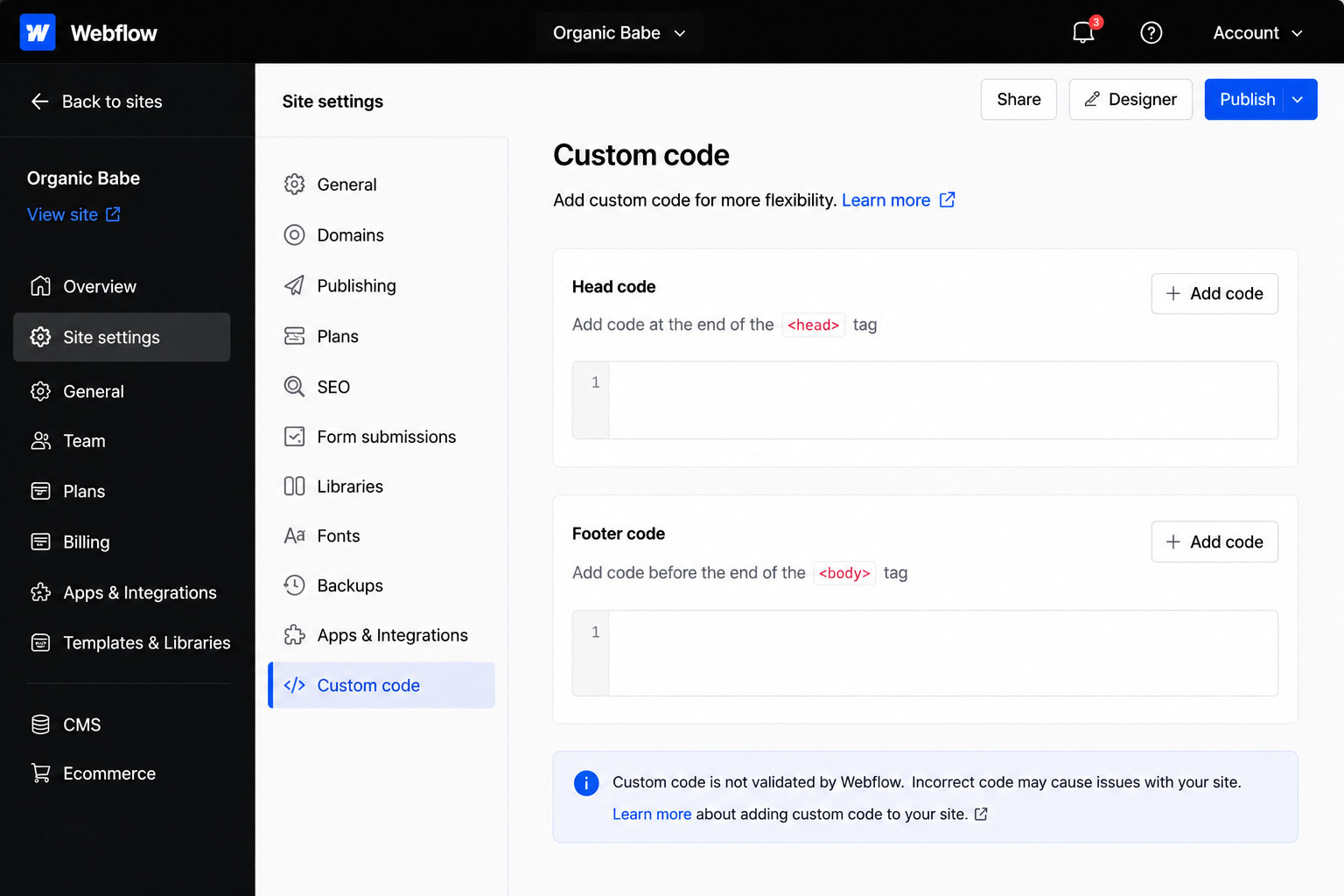 Open Site settings → Custom code to access
Webflow's site-wide Head and Footer code fields.
Open Site settings → Custom code to access
Webflow's site-wide Head and Footer code fields.
Open Site settings → Custom code to access
Webflow's site-wide Head and Footer code fields.
STEP 2
Find the Footer code field
In Webflow's Custom Code settings you will find separate areas for:
Head code
Footer code
For ImagenTra, use:
Footer code
Webflow places code entered here immediately before the closing </body> tag and applies it throughout the site.
RECOMMENDED LOCATION
Footer code
Webflow itself recommends placing scripts before the closing body tag in typical cases because this generally provides better page-loading performance.
This placement is ideal for the ImagenTra
storefront widget.
STEP 3
Paste your ImagenTra widget
Paste the complete ImagenTra widget into the Footer code field.
<script src="https://widget.imagentra.com/widget/widget_v27.js?key=MERCHANT_PUBLIC_KEY&stkey=STORE_PUBLIC_KEY"></script>Your actual widget contains the public merchant and store keys generated for the domain where ImagenTra will be used.
Copy the widget exactly as provided by ImagenTra. You don't need to add another script wrapper or modify the generated URL.
IMPORTANT
Use your generated widget
The example on this page contains placeholder public keys.
Your ImagenTra widget already contains the correct merchant and store identifiers, so paste the complete code generated for your domain.
Do not replace the generated public keys
with values from another store.
FOOTER CODE
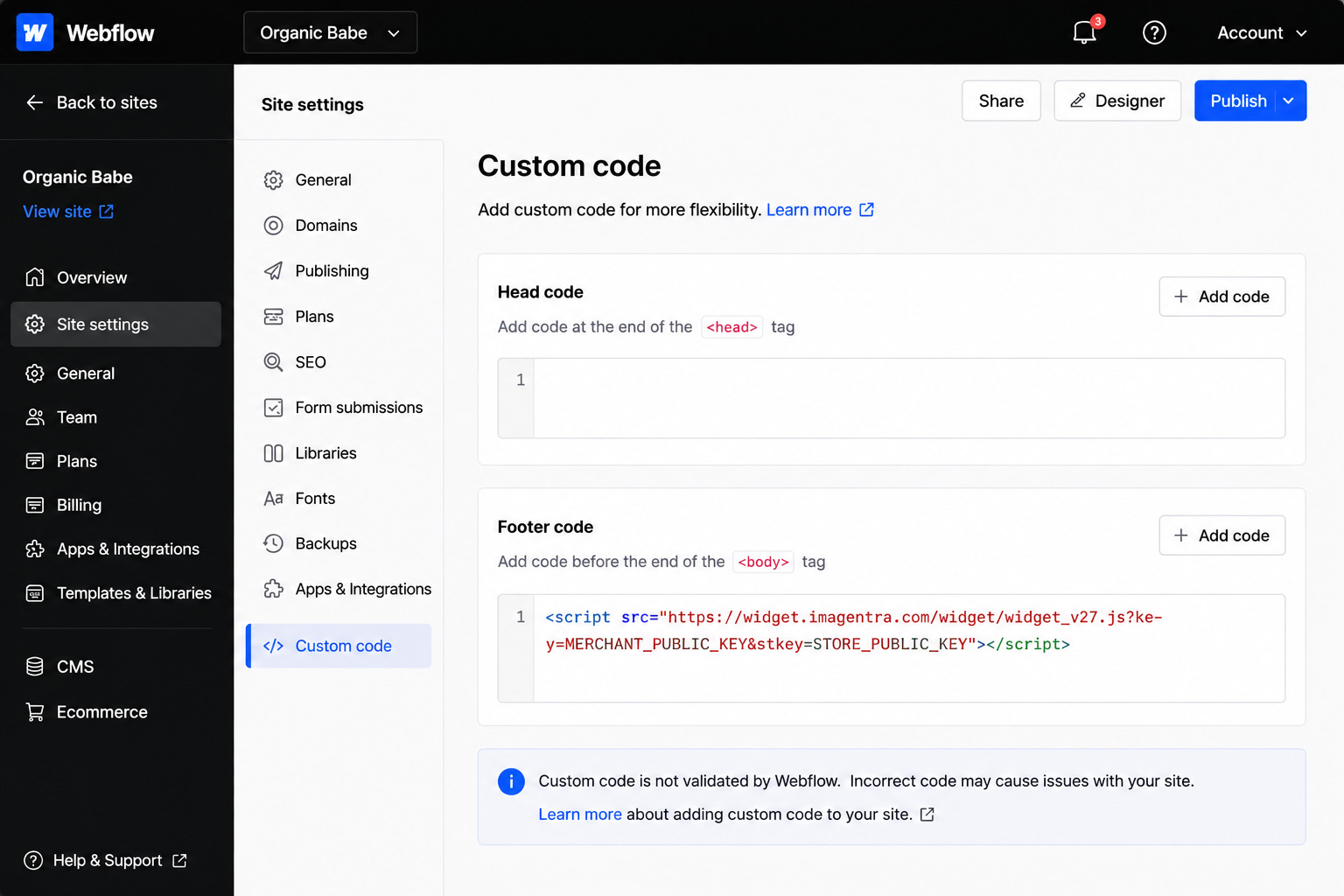 Paste the complete ImagenTra script into
Webflow's site-wide Footer code field.
Paste the complete ImagenTra script into
Webflow's site-wide Footer code field.
Paste the complete ImagenTra script into
Webflow's site-wide Footer code field.
STEP 4
Save and publish your website
After adding the ImagenTra widget, click:
Save changes
Then publish your Webflow website.
Site-wide Custom Code changes don't become live on your public website until the site has been published.
Save Custom Code
Publish website
Open live domain
DON'T FORGET
Saving isn't the final step
Saving your Custom Code configuration and publishing your website are separate steps.
If ImagenTra isn't visible after installation, first confirm that the Webflow site has been republished since adding the code.
STEP 5
Test ImagenTra
Open the published website and confirm that ImagenTra loads correctly.
Test several types of pages, especially if your Webflow website uses Ecommerce or CMS content.
Homepage
Category / Collection page
Product page
PREVIEW MODE
Webflow can also preview custom code
Current Webflow preview mode has an Enable custom code option that allows custom scripts to run in an isolated Webflow preview environment.
For the final ImagenTra test, however, use the actual published domain associated with your ImagenTra package.
WEBFLOW PLAN
Custom Code requires an eligible Webflow plan
Webflow currently allows Site managers and Designers to add site-wide Custom Code when the site has an active Site plan, or when it belongs to an eligible paid Workspace.
A Webflow site published to its own custom domain normally already has the required Site plan.
DOMAIN VERIFICATION
Verify your Webflow domain
You don't need to verify your domain to install or use ImagenTra. A package purchased for the domain can be used without ImagenTra account registration or domain verification.
Verification is only needed when you want access to the protected statistics and analytics for that domain.
For Webflow, the simplest verification method is ImagenTra's temporary verification widget.
01
Copy the verification widget
Get the temporary verification widget generated by ImagenTra for your Webflow domain.
02
Open Custom Code
Return to Site settings → Custom code and locate the Footer code.
03
Temporarily replace the widget
Replace your normal ImagenTra widget with the verification widget.
04
Save and publish
Save the Custom Code changes and republish your Webflow website.
05
Verify your domain
Load the verification widget from the same device where you requested the verification.
06
Restore ImagenTra
Once verification succeeds, restore your standard ImagenTra widget and publish the site again.
AFTER VERIFICATION
Verification is permanent
The special verification widget is only needed while ImagenTra confirms control of the domain.
Once verification succeeds, restore your normal ImagenTra widget.
You can then access the protected statistics
and analytics for the verified domain.
VERIFICATION METHOD
Use the widget method on Webflow
Standard Webflow hosting doesn't provide normal server filesystem access where you can freely create a /.well-known/ directory and upload the ImagenTra verification file.
For a normal Webflow-hosted website, the temporary verification widget is therefore the recommended ImagenTra verification method.
READY
Your Webflow website is ready for ImagenTra
Once the site-wide Footer code is published on the domain associated with your package, you can start using your available generations. Verify the domain separately when you want access to protected statistics and analytics.