successfully added to your cart!

SHOPIFY
Manually Install ImagenTra on Shopify
Add the ImagenTra widget to your active Shopify theme so it loads across your online storefront.
01
Copy the widget
Copy the complete ImagenTra widget generated for your Shopify store's domain.
02
Open theme code
Go to Online Store → Themes and choose Edit code for your active theme.
03
Edit theme.liquid
Open the main theme layout and add ImagenTra before the closing body tag.
04
Save & test
Save the theme and test ImagenTra on your live Shopify storefront.
STEP 1
Open your Shopify theme
Log in to your Shopify administration and open:
Online Store
Themes
...
Edit code
Shopify recommends creating a duplicate of your theme before making manual code changes.
Duplicating the theme gives you a backup
that you can restore if necessary.
SHOPIFY THEME CODE
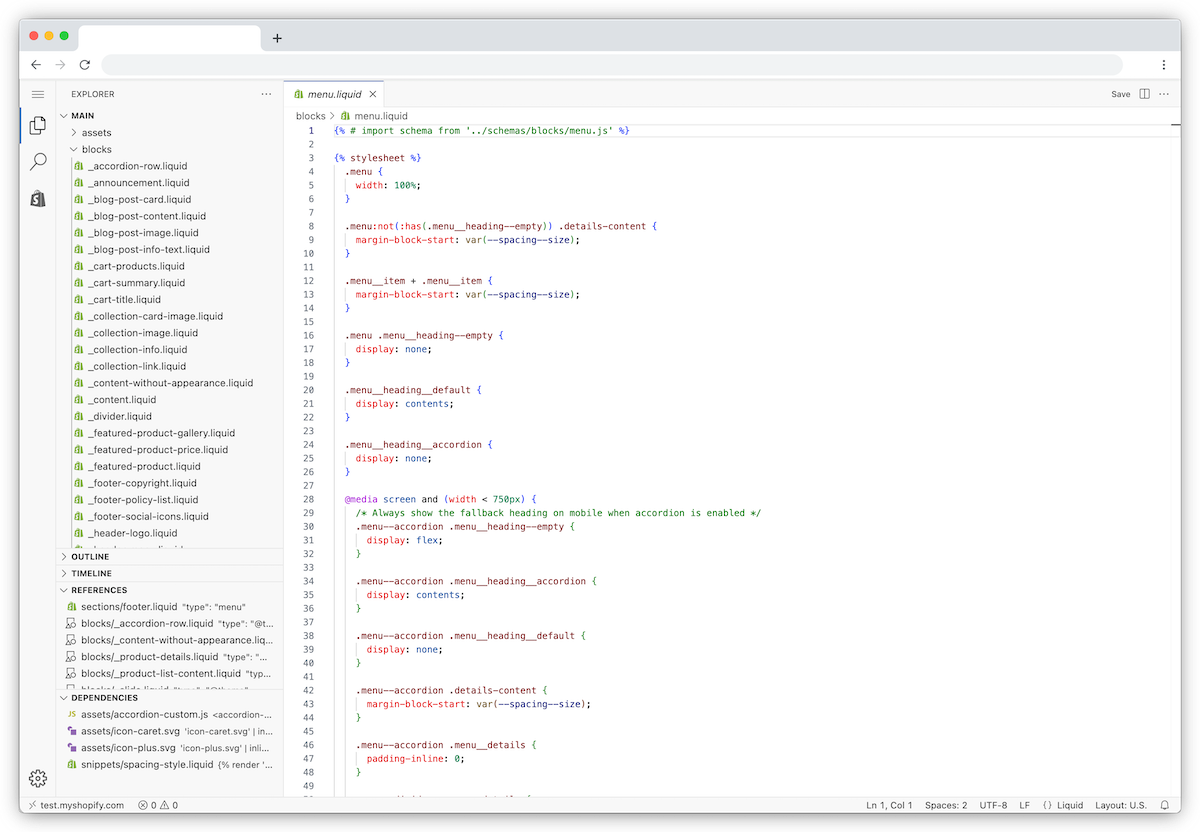 Shopify's theme code editor
Shopify's theme code editor
STEP 2
Open layout/theme.liquid
In the Shopify code editor, open the Layout folder and select:
layout/theme.liquid
This is the main storefront layout used by the theme and is the appropriate place for a site-wide widget.
Scroll toward the bottom of the file and locate:
</body>
IMPORTANT
Edit the active storefront theme
Shopify can contain several installed themes. Make sure you install ImagenTra in the theme currently published on your store.
If you later publish a different theme, ImagenTra must also be added to that theme.
STEP 3
Add the ImagenTra widget
Paste the complete ImagenTra widget immediately before the closing </body> tag.
    ...

    [YOUR IMAGENTRA WIDGET CODE]

</body>
</html>
Do not modify the domain, package identifiers or other values contained in the generated ImagenTra widget.
PLACEMENT
Before </body>
This allows the main storefront content to load before the ImagenTra integration is initialized.
Install the widget only on the domain
associated with your ImagenTra package.
SAVE YOUR CHANGES
 Save the modified Shopify theme file
Save the modified Shopify theme file
STEP 4
Save and test your store
Click Save in the Shopify code editor after adding the ImagenTra widget.
Open the public storefront in a new browser window and check that ImagenTra loads correctly.
Homepage
Collection page
Product page
THEME CHANGES
Check ImagenTra when changing your Shopify theme
Manual code changes belong to the theme in which they were added. If you install, update or publish another Shopify theme, confirm that the ImagenTra widget also exists in the newly published theme.
DOMAIN VERIFICATION
Verify your Shopify domain
ImagenTra does not require domain verification to use your purchased package. Verification is only required when you want access to the domain's protected statistics and analytics.
Shopify does not provide normal access to the web server root, so the standard ImagenTra .well-known verification file method is not suitable for a normal Shopify store.
Instead, verify your Shopify store using ImagenTra's temporary verification widget.
01
Get your verification widget
Copy the temporary verification widget generated by ImagenTra for your domain.
02
Open theme.liquid
Return to Shopify's theme code editor and
open layout/theme.liquid.
03
Temporarily replace the widget
Replace your standard ImagenTra widget with the temporary verification widget and save the theme.
04
Verify the domain
Load the verification widget from the same device where you requested the verification.
05
Restore your normal widget
Once verification succeeds, remove the temporary widget and restore your standard ImagenTra widget.
AFTER VERIFICATION
Your domain stays verified
The verification widget is only needed while ImagenTra confirms control of your Shopify domain.
After successful verification, restore your standard ImagenTra widget and continue using the store normally.
Your verified domain can now access its protected
ImagenTra statistics and analytics.
READY
Your Shopify store is ready for ImagenTra
Once the widget is loaded on the domain associated with your package, you can start using your available generations. Domain verification is only required when you want access to protected statistics.